Scheduling
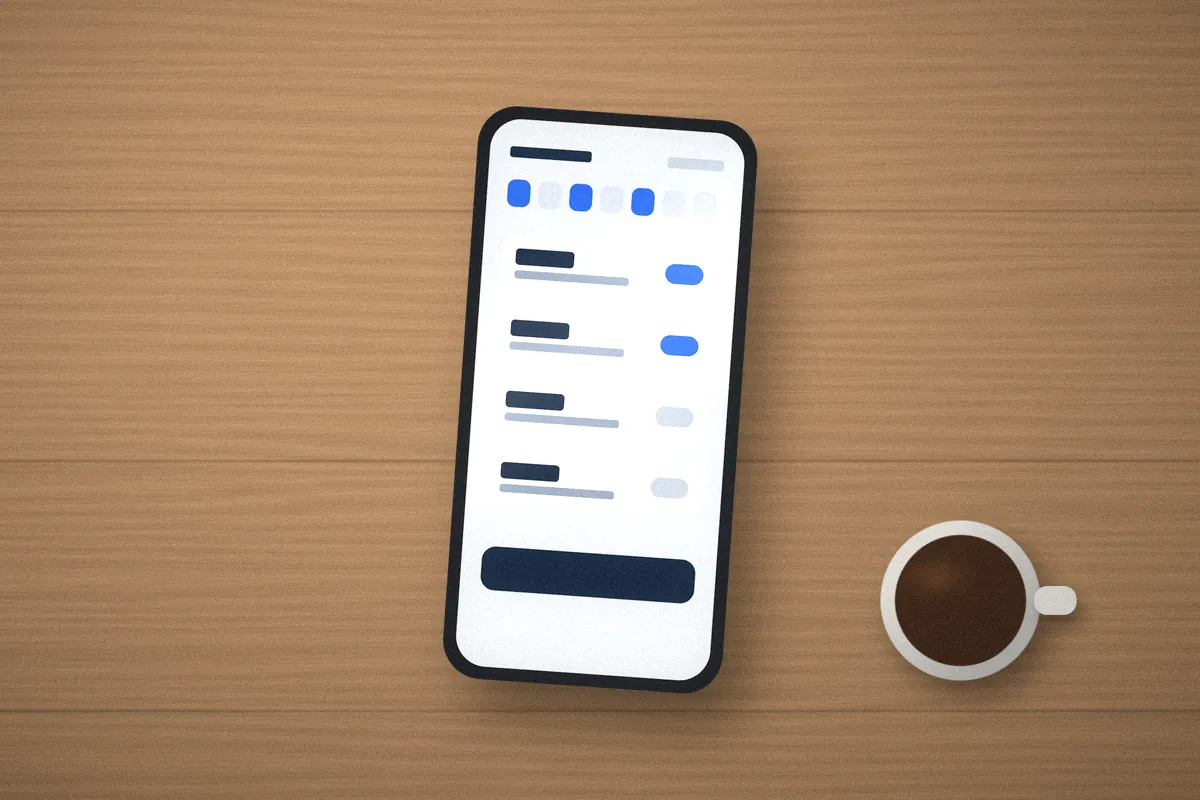
Automatic cleaning on the days and times you choose.

Find the official companion app, set up your account safely, then make schedules, maps and notifications work for your home.

A companion app is the manufacturer’s official app for controlling your robot vacuum from a phone. Features vary by model, but most apps offer some combination of:
Automatic cleaning on the days and times you choose.
Room-by-room cleaning, no-go zones and virtual boundaries.
Notifications for finished runs, errors and maintenance reminders.
Some apps also handle firmware updates, consumable tracking and smart speaker integrations. If your robot has no Wi-Fi at all, it won’t use an app — buttons or a remote will be its controls.
The quick-start guide or packaging names the official app. Some include a QR code that opens the correct listing.
Use the Apple App Store or Google Play (or your device’s official store). Avoid installing app files from websites.
The developer name on the listing should match the manufacturer. Look-alike apps with similar icons exist.
Third-party apps that claim to control any robot may ask for your account login. Stick with the manufacturer’s app.
iRoomBaseTP does not provide app downloads or links to unofficial apps. Search your phone’s official app store for the app named in your manual.
Pairing links the robot to your Wi-Fi network and your account in a single flow. Check that your robot is listed as compatible with the app version you installed, then follow the in-app steps. The full walkthrough, including band compatibility and common failures, is in the Wi-Fi connection guide.
| Permission | Why apps commonly request it | Your choice |
|---|---|---|
| Bluetooth | Discovering the robot nearby during setup | Usually needed for pairing on Bluetooth-assisted models |
| Location | Phone systems often require it to scan Wi-Fi networks or nearby devices | “While using the app” is typically enough |
| Local network | Talking to the robot on your home network | Generally needed for setup and local control |
| Notifications | Run finished, errors, maintenance reminders | Optional — customize what you receive |
| Camera | Scanning a QR code during setup | Optional; you can often enter details manually |
If a permission seems unrelated to what the app does, check the app’s privacy policy or store listing before allowing it.
Schedules are where a robot vacuum earns its keep. A few tips for setting them up:
Mapping models build a floor plan as they clean. Once the map looks right, you can usually:
Divide the map into rooms so you can clean one area at a time.
Keep the robot away from pet bowls, cable clusters or delicate rugs.
Adjust suction, passes or mopping by room where supported.
After moving large furniture, let the robot update the map or edit it.
Better maps lead to better navigation — see how to improve navigation.
Too many alerts become noise. A useful baseline is to keep notifications for errors (stuck, brush jammed, bin full) and maintenance reminders, and to turn off “run started” or promotional messages if your app separates them. Maintenance reminders pair well with the schedule on our maintenance page.
Clean sensors and brushes keep maps reliable and schedules on track.